Admin & security
Users, roles, branding, licensing, single sign-on, data export, and security.
Users, roles & permissions
A company-wide role catalog and editable per-tool templates map each member to enforced, four-level access — default-deny, so a person only gets what their role grants.
FieldsDesk ships with a company-level role catalog built on per-tool permission templates — the same model construction teams know from Procore. When you invite someone, you assign them a role; that role maps to enforced access on every tool in the product at one of four levels — None, Read Only, Standard, or Admin. Permissions are default-deny: a member only gets what their template grants. Company admins are the exception — they always have full access to everything.
The four access levels
- None — the tool is invisible; the member can’t open it.
- Read Only — view, but not create or change.
- Standard — the everyday tier: create and edit records.
- Admin — Standard plus the destructive / financial-approval actions, such as deleting a commitment or approving a change event that ripples into the budget.
The role catalog
There are two families of roles. Internal roles are for your own staff; external roles are for the partners you collaborate with on a project — owners, architects, subs, and suppliers.
- Internal (7): Owner, Director, Business Manager, Purchaser, Project Manager, Assistant Project Manager, and Site Superintendent.
- External (5): Client / Owner, Architect, Subcontractor, Supplier, and Read-only Stakeholder.
Each role carries a sensible default per-tool map — a Site Superintendent gets Admin on field tools like the daily log, photos, and punch list but Read-Only on financials; a Purchaser is Admin on commitments and selections; an Assistant PM works at Standard with no financial approval. Internal staff with no role yet resolve from the company’s default internal role (Project Manager out of the box; change it under Admin → Roles), so a new hire is never locked out of every module and never handed more than intended.
Build your own templates
Under Admin → Roles, edit any seeded role tool by tool, or duplicate it first — the saved template is exactly what gets enforced, and setting a cell to None genuinely hides the tool. Preview impact shows what a change alters and who it lands on before you save; Reset restores a built-in role to its shipped map. A per-tool granular override can also grant a single Admin-tier action (say, allow a Standard role to delete RFIs) without promoting the whole tool. Assign the template when you invite or edit a member; it travels with them across every project, and a project’s own overrides can only ever narrow it — never widen it.
Enforced, not advisory
External collaborators sit under a ceiling that lives in code, not in any setting: no role, group or override can hand an architect or a sub the budget, commitments, pay applications, estimating or bidding — unless a company admin deliberately allows read-only cost visibility on that one template for a lender or owner’s rep. These permissions are enforced on the server, not just reflected in the interface. A tool a member’s template does not grant is hidden from their navigation and blocked at the API — there is no back door by typing a URL. Standard is required to create or change a record; the Admin tier gates the irreversible actions; Read Only lets a member view but not edit; None means the tool is invisible to them.
External collaborators reach scoped portals
External roles do not open the internal project at all. A Client / Owner reaches the owner-safe owner portal; a Subcontractor reaches their scoped subcontractor portal, seeing only their own commitments and the modules you grant per invite. The same role catalog drives both the internal app and the external portals, so access stays consistent everywhere.
Branding
Make FieldsDesk look like your firm — name, color, and logo across the app and login.
Admin → Branding lets you set your company name, primary color, and logo. The app shell, the login screen, and generated documents pick up your branding in real time, so the platform reads as your firm’s tool to your team, your subs, and your owners.
Licensing & billing
See your plan and manage payment from a self-service customer portal.
Admin → Licensing shows your current tier, status, and renewal. Billing runs through Stripe; the embedded customer portal lets you update your card, download invoices, and change plan without emailing anyone.
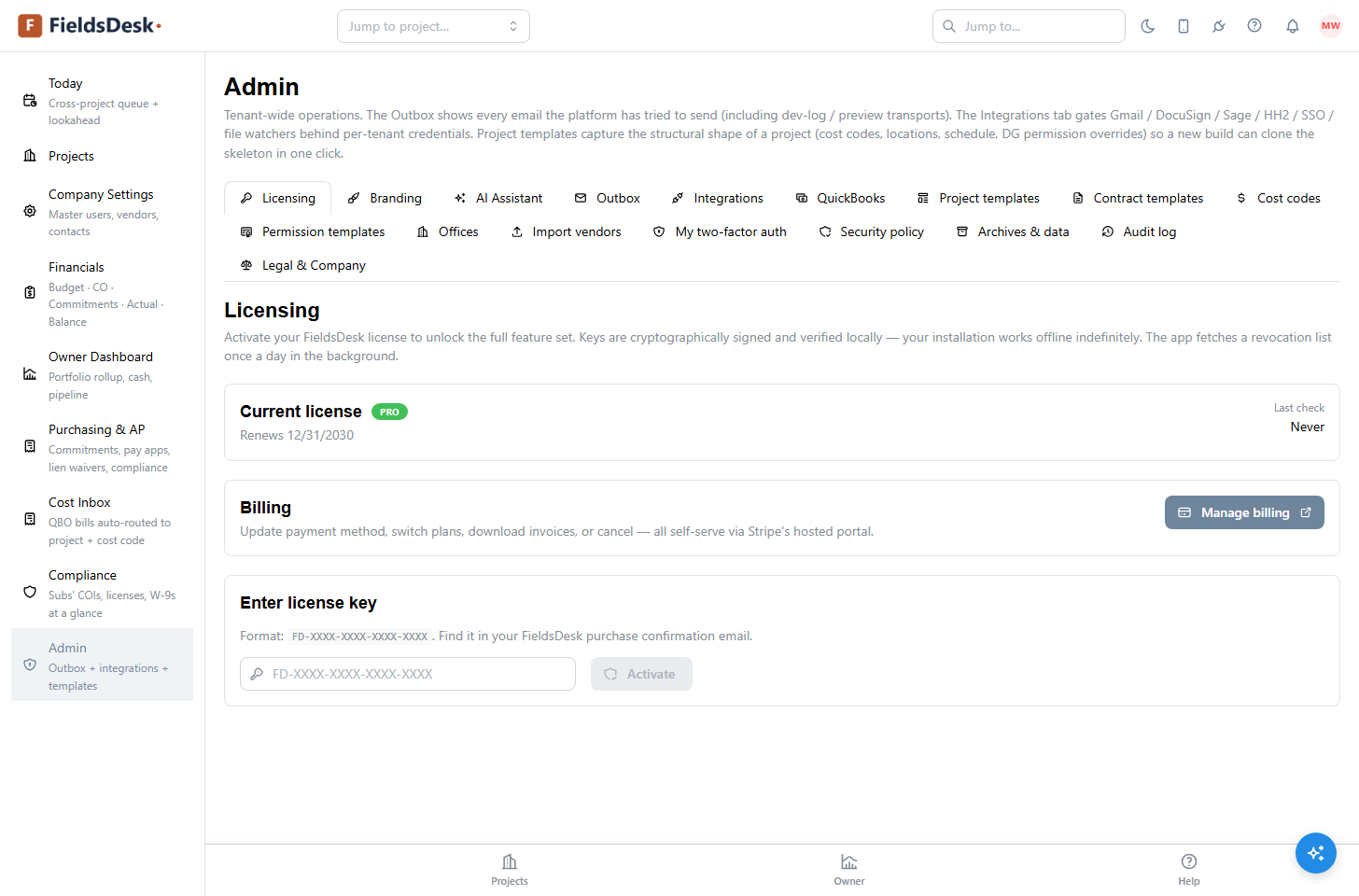
For current plans and the founding-member offer, see pricing. Founding members lock their rate for three years.
Multiple offices
Segregate data by office while keeping one company login and one portfolio roll-up.
Firms that run more than one office can segregate projects, people, and financials by office while keeping a single company account. Users are scoped to the offices they belong to; the Owner Dashboard can roll the whole company up or filter to one office.
Single sign-on (SSO)
Let your team sign in with Google or Microsoft instead of a separate password.
FieldsDesk supports Google and Microsoft single sign-on via OpenID Connect. With SSO enabled, your team signs in with the identity provider you already use, and access follows your directory — disable someone there and they lose access here.
Enable it
- Open Admin → Security → SSOChoose Google or Microsoft as your identity provider.
- Connect the providerFollow the OIDC connect flow to authorize FieldsDesk for your organization.
- Choose enforcementOptionally require SSO for everyone in your company, or allow it alongside password sign-in during a transition.
Data export & portability
Download any project — or your whole tenant — as a structured archive, any time.
Your data is yours. Admin → Archives & data lets you download a single project or your entire tenant as a .tar.gz archive — records as JSON, files in their original folder structure, plus a manifest and a plain-text README.
- Per-project archive (just one build) or full-tenant archive (everything)
- Human-readable structure — open it in Finder or Explorer, hand it to an auditor
- Useful for the 6–10 year legal and insurance retention window residential GCs work under
Security & data protection
How FieldsDesk protects your data — tenant isolation, encryption, backups, and access controls.
Security matters for a tool that holds your contracts, financials, and owner data. Here is what is in place today:
- Tenant isolation — every company’s data is separated and server-enforced; one tenant can never read another’s.
- Encryption — data is encrypted in transit (TLS) and at rest, and sensitive integration credentials are additionally encrypted with AES-256-GCM.
- Backups — the database is backed up daily to durable, access-controlled storage.
- Access control — role-based permissions enforced per module on the server (default-deny), optional Google / Microsoft single sign-on, and optional multi-factor authentication.
- Monitoring — application errors are captured and monitored so problems are caught quickly.
- Your data stays yours — export any project, or your whole account, at any time. See Data export & portability.
We keep investing in our security program as we grow toward general launch. For private self-hosting — where data and files live entirely on your own infrastructure — contact us. Security questions are always welcome at [email protected].