Subcontractor portal
Give each sub a scoped, password-protected portal — invited from the commitment, set per tool, and cost-isolated from everyone else.
What the subcontractor portal is
A scoped trade portal that sits below the GC — the mirror image of the owner portal, which sits above it.
The subcontractor portal gives each of your subs a clean, password-protected window into just their own work on a project. Where the owner portal sits above you — letting the homeowner follow progress without seeing your internals — the subcontractor portal sits below you. Together they complete FieldsDesk’s external-collaboration story: the owner on one side, every trade on the other, you in the middle holding the full picture.
A sub is invited straight from their commitment — the subcontract you already issued them. They log in and see only their own commitment(s) on that project: their scope, their schedule tasks, their RFIs and submittals, their pay requisitions, their compliance docs. They never see another sub’s pricing, your markup, the project budget, or the prime contract.
Cost isolation is structural
A sub’s view is scoped to their commitment by the way the data is wired, not by a setting you have to remember to flip. There is no toggle that, left wrong, would expose your buyout. A sub sees the dollars on their contract and the line items on their requisitions — nothing about what any other trade is paid or what you carry on top.
Invite a sub and set per-tool access
From the commitment, set each of nine tools to None, Read, or Read-write — sensible defaults, changeable per sub.
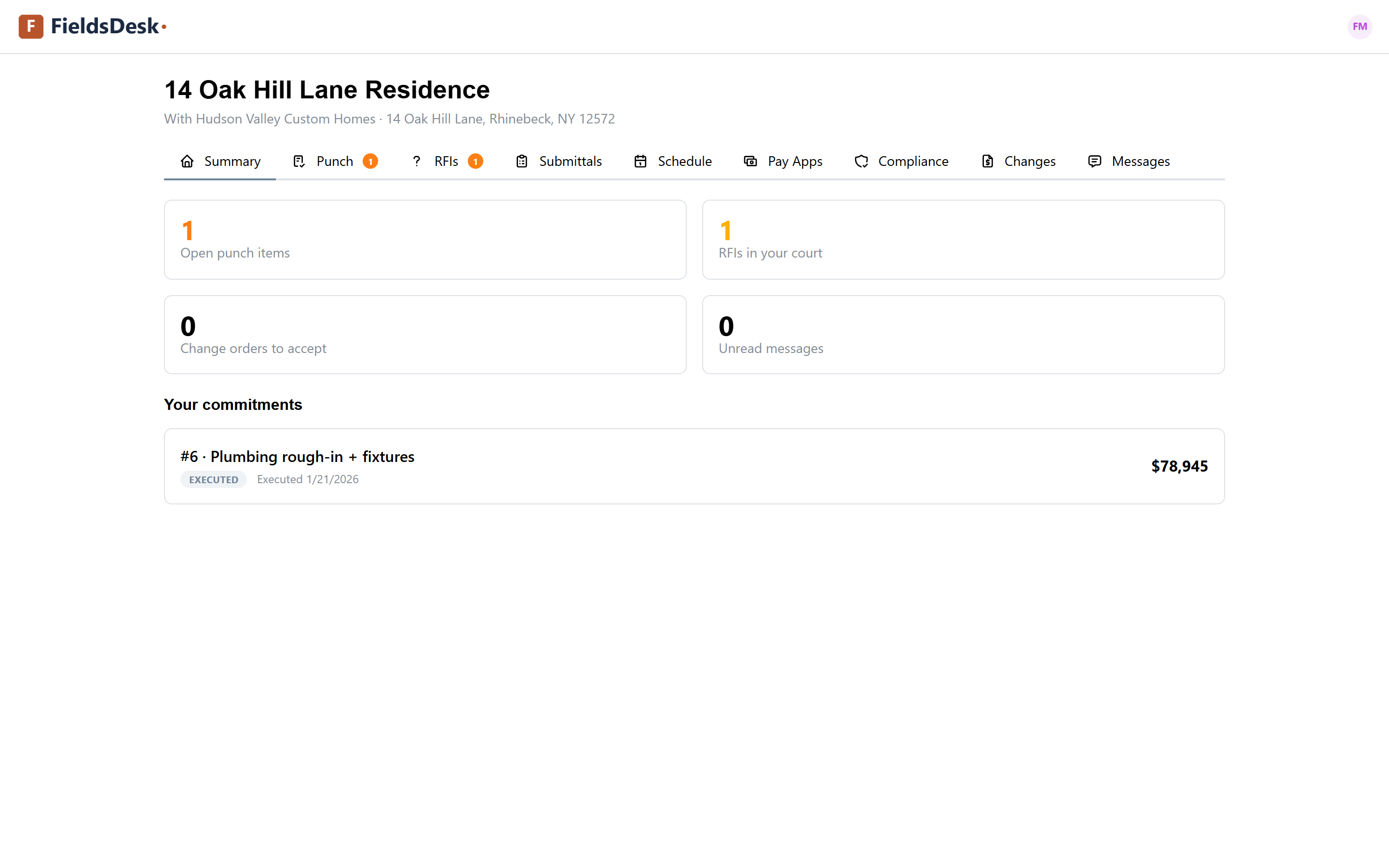
You invite a sub from inside their commitment, and at invite time you set per-tool access. Each of nine tools can be None (the sub never sees it), Read (they see it read-only), or Read-write (they can act on it). The nine tools are Punch list, RFIs, Submittals, Schedule, Pay applications, Compliance docs, Change orders, Documents, and Messages.
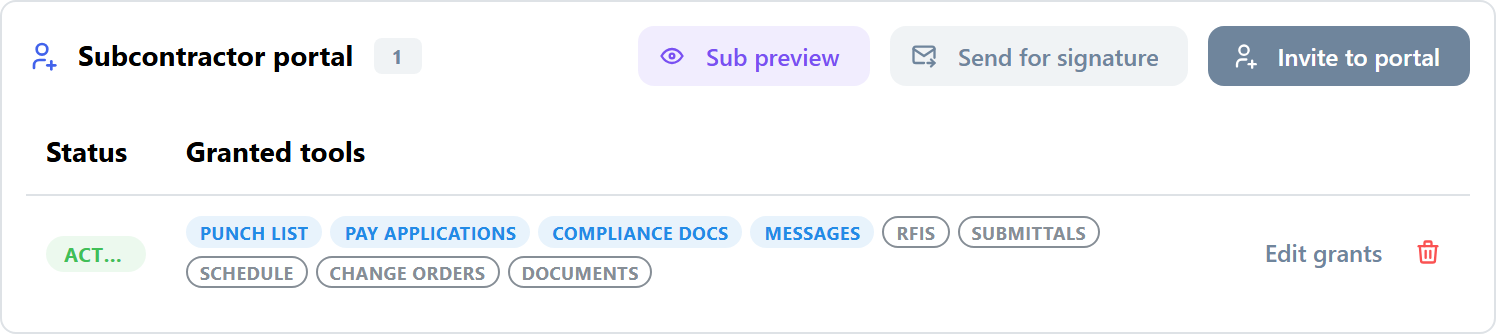
- Open the commitmentOn the Commitments list, click the commitment to open its drawer. The Subcontractor-portal panel carries the portal controls for this sub.
- Set the access matrixClick Invite to portal (or Edit grants on an already-invited sub) to open the per-tool matrix. For each of the nine tools, choose None, Read, or Read-write.
- Start from the defaultsThe matrix opens pre-set to a sensible residential default: Punch list, Pay applications, Compliance docs, and Messages are Read-write; RFIs, Submittals, Schedule, Change orders, and Documents are Read. Adjust anything before you send.
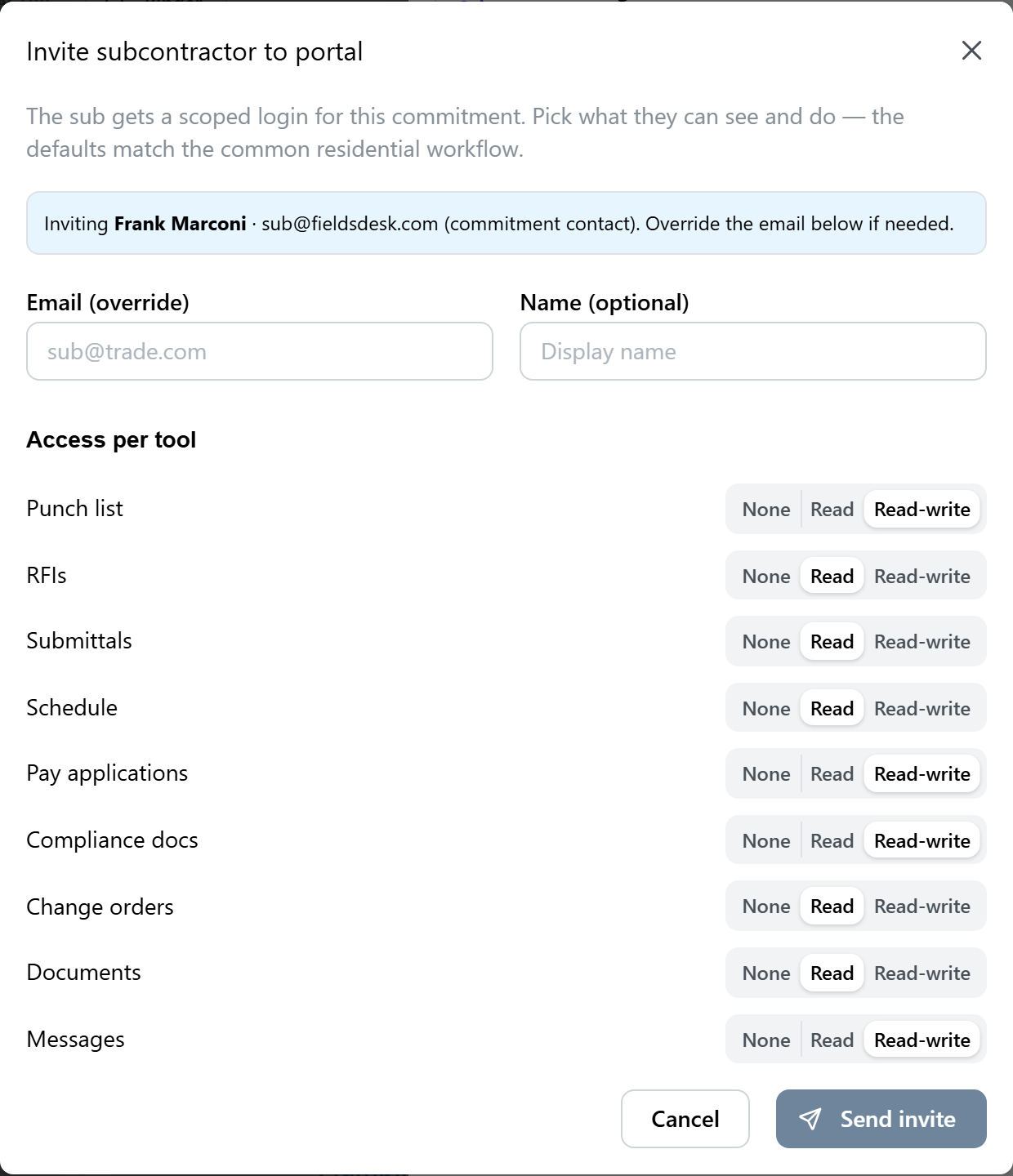
- Send the inviteFieldsDesk emails the sub a one-click link to set a password. When they log in they land on their scoped portal, showing only the tabs you granted.
| Tool | Default access |
|---|---|
| Punch list | Read-write |
| Pay applications | Read-write |
| Compliance docs | Read-write |
| Messages | Read-write |
| RFIs | Read |
| Submittals | Read |
| Schedule | Read |
| Change orders | Read |
| Documents | Read |
What the sub does in their portal
Read-only tabs are visible but locked; read-write tabs let the sub upload, requisition, accept, and message.
The tabs a sub sees are driven entirely by their grants. A Read tab carries a read-only badge — the sub can see their RFIs, submittals, schedule tasks, change orders, or documents, but cannot change them. A Read-write tab lets them do the work.
What read-write unlocks
- Submittals — upload a shop drawing or product-data submittal against their scope.
- Compliance docs — upload a COI, W-9, or bond, so their paperwork is current without an email thread.
- Pay applications — submit a pay requisition for the period, referencing the same industry-standard pay-application format used elsewhere in FieldsDesk.
- Punch list — mark a punch item in review or ready to close as they work it.
- Change orders — accept a change order issued against their commitment.
- Messages — message you directly from the portal, scoped to their commitment.
What the sub is told, and when
A sub is reached through their commitment or through the cost code on the record, so a change order written against a code reaches the mechanical sub whether or not anyone ticked the commitment field. Nothing is sent on creation or on every comment — a channel that carries noise stops being read from a truck.
- RFI — the official answer only.
- Submittal — approved, or approved as noted.
- Change order — approved (with the value, their contract sum already moved) or rejected, with “do not proceed”.
- Schedule — when a planned start or finish actually moves, with the old and new dates; and “you are scheduled to start in 5 days”.
- Punch — an item assigned to their trade.
- Pay applications — approved, rejected (with the reason, so they can correct and resubmit), or paid.
- Insurance — a certificate expiring in 30, 14 and 3 days, and on the day it lapses.
And what you are told: an RFI reply (to the asker, the assignee and ball-in-court), a package upload — which hands the ball back to you — a change-order acceptance, a message, a compliance document, punch work marked ready to inspect, and a pay application started. A sub whose grant for a tool is None is never pointed at a record their portal will not show them.
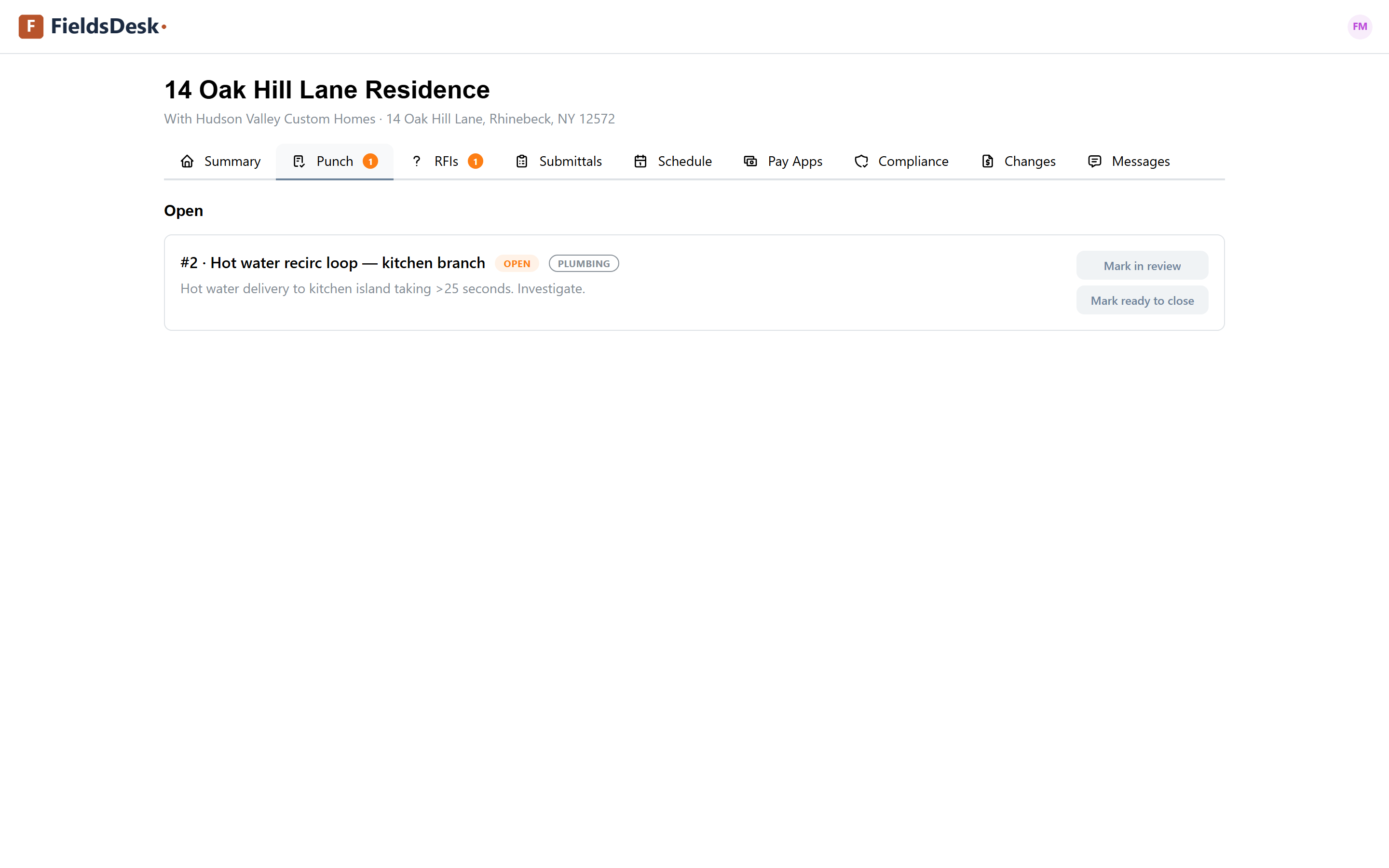
When a sub submits a pay requisition, it lands in your subcontractor pay-application queue for review — the sub fills the schedule of values for their scope, you approve and pay, and the live pay-requisition trail on the subcontract updates. When a sub marks a punch item ready to close, it routes to your verifier exactly as it would if you had flipped it yourself (see the Punch list).
Send the subcontract for signature
Execute the subcontract by online acceptance — typed name plus a consent checkbox, captured with timestamp, IP, and device.
A sub accepts their subcontract by online acceptance, not a heavyweight signing ceremony — deliberately, because that fits how small trade shops actually work. There is no DocuSign account to create, nothing to print, nothing to scan.
- Click Send for signatureFrom the Subcontractor-portal panel on the commitment, click Send for signature. The sub gets a hyperlink to a clean acceptance page.
- The sub reviews and acceptsThey open the acceptance page, review the agreement (merged from your own template — see Bring your own templates), type their name, and check a consent box to execute.
- Acceptance is capturedFieldsDesk records the typed name, a timestamp, the IP address, and the device — a valid electronic signature under the U.S. ESIGN Act. The executed acceptance attaches to the commitment.
Sub preview, editing grants, and revoking access
See the portal exactly as the sub will before you invite — and change or revoke access live, in effect on their next load.
Before you ever send an invite, you can confirm the scope is right by viewing the portal as the sub will see it. After they are in, grants are live — you can tighten, loosen, or revoke at any time.
- Sub previewOn the Subcontractor-portal panel, click Sub preview to view the portal exactly as that sub will see it — the same tabs, the same scope, the same read-only badges. Use it to confirm the access matrix before you send the invite.
- Edit grants any timeClick Edit grants to reopen the per-tool matrix and change any tool’s access. Changes are live — a tool you switch to None disappears from the sub’s portal on their next load; a tool you switch to Read-write becomes actionable.
- Revoke accessRevoking a sub’s access takes effect immediately. Their portal stops loading the project on their next visit, while their commitment, requisitions, and uploaded compliance docs stay on record with you.