Budget & financials
Build the GMP budget, organize cost codes, and watch actuals roll in from QuickBooks.
Build and approve a budget
Set up cost codes, lock the GMP, and turn the budget into the baseline for everything that follows.
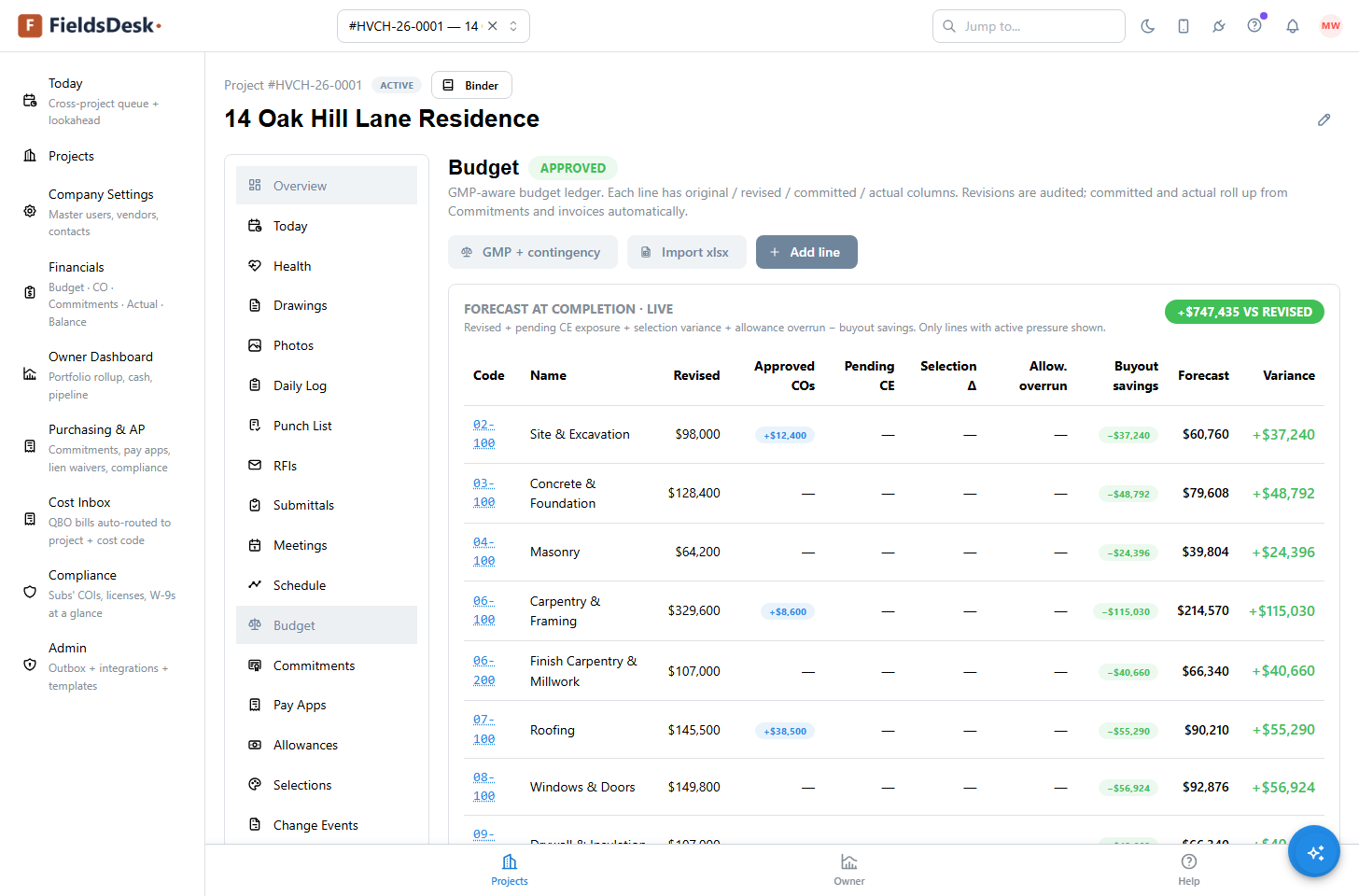
- Open BudgetProject sidebar → Budget. You see Original, Revised, Committed, and Forecast columns grouped by CSI division.
- Set the GMP headerClick Edit header to set the contractual GMP and contingency. The GMP is the cap on what you can bill the owner without a change order; every variance tracks against it.
- Add lines by divisionClick Add line, pick a CSI division (e.g. 06 Wood & Plastics), choose a cost code from your library, and enter the amount. Repeat per scope — or apply a template to clone a whole structure at once.
- Approve the budgetClick Approve. Status flips from Draft to Approved and the budget becomes the baseline. Until you approve, PMs cannot issue commitments — that gate prevents live spend against an unfinished plan.
- Revisions are tracked for auditEditing an approved line opens a revision and moves the budget to Revised status; the original amount is preserved alongside the new one.
Cost codes
A single company-wide cost-code library keeps every budget, commitment, and pay app speaking the same language.
Cost codes are the backbone of the financials. Every budget line, commitment line, change-event line, and pay-app line ties back to a cost code, which is how FieldsDesk can roll the same dollar up through the budget, into committed totals, and out to the owner pay application without re-keying.
Your library is organized by CSI division. Manage it under Admin → Cost Codes — add codes, group them by division, and they become available in every project. When you clone a project template, the cost-code structure comes with it.
The financials cost report
The seven-column cost report every owner and PM recognizes — across the whole portfolio or one job.
Click Financials in the left nav for the canonical job-cost view. The portfolio view shows all projects with the seven standard columns; click any project row to drill into the cost-code breakdown grouped by CSI division.
| Column | What it shows |
|---|---|
| Original Budget | The approved GMP baseline by cost code |
| Change Orders | Approved owner changes that adjust the contract |
| Revised Budget | Original plus approved change orders |
| Commitments | Executed subcontracts and purchase orders |
| Actual Cost | Real spend, updated live from QuickBooks bills |
| Balance to Commitment | Committed minus actual — what is left on each contract |
| Balance to Budget | Revised budget minus committed — uncommitted room |
The Actual Cost column updates automatically as bills sync from QuickBooks, so the report reflects real spend without manual entry. See Cost Inbox for the routing queue underneath.
Cost Inbox & QuickBooks
Incoming vendor bills land in a queue, get routed to the right project and cost code, and flow into actuals.
When QuickBooks Online is connected, every vendor bill syncs into the Cost Inbox — a routing queue that turns raw accounting entries into job-costed actuals.
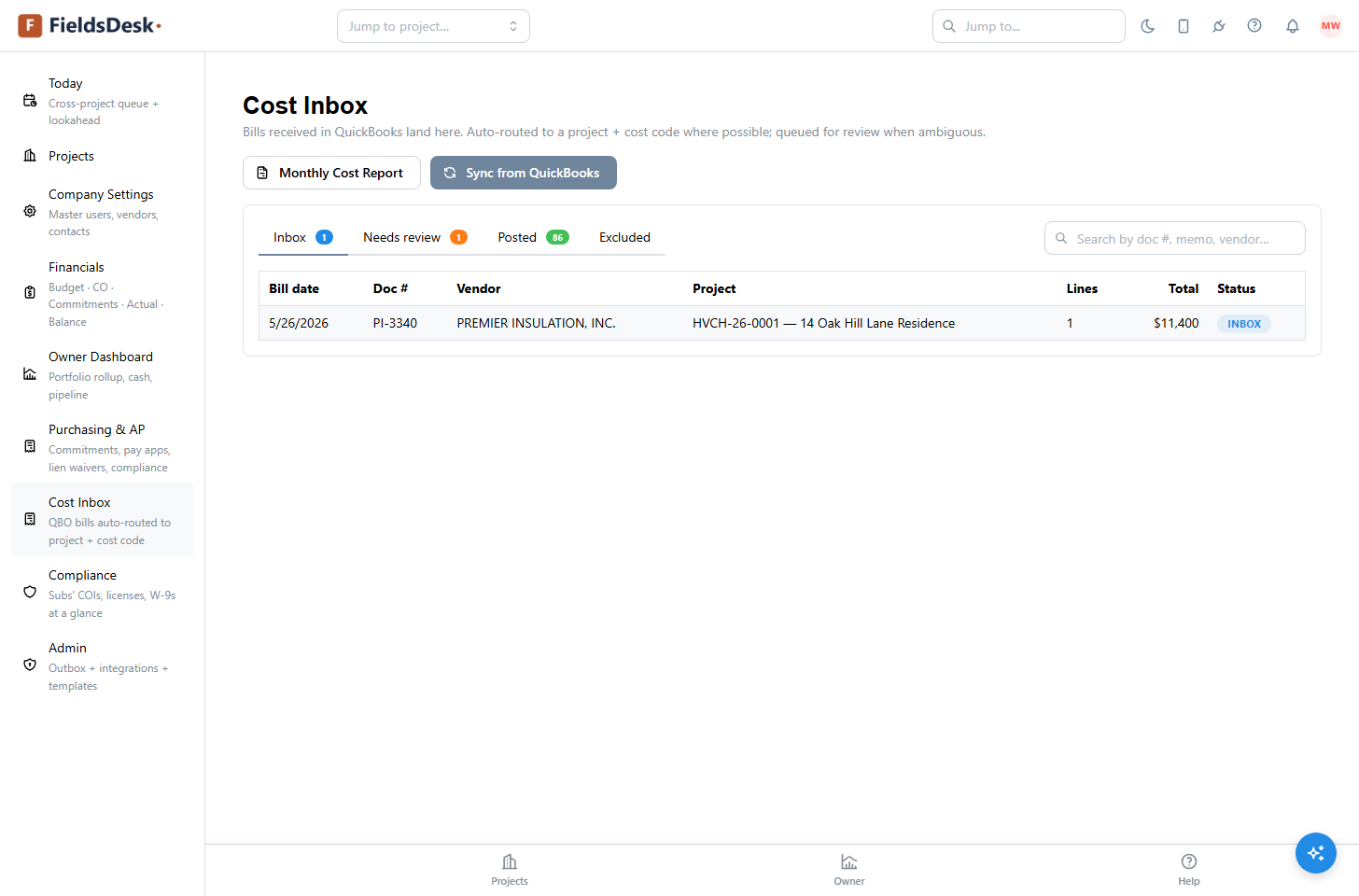
- Bills sync inEach QuickBooks bill appears in the Cost Inbox with its vendor, amount, and any class/customer-job already set in QuickBooks.
- Auto-routing does the first passFieldsDesk maps the QuickBooks account to a cost code and the Customer:Job to a FieldsDesk project, so most bills arrive already routed.
- Confirm or correctReview the queue, fix any that need a different project or cost code, and post. Once posted, the amount lands in the Actual Cost column of the financials report.